My Computer Says to Call Microsoft. Should I?
You're browsing the web, and suddenly the screen fills with a red warning. Alarms may be beeping. A message says your computer is infected, your files are at risk, and you need to call Microsoft right now at the number on the screen. Your heart rate goes up. Should you call?
In almost every case, no. That pop-up is a scam, and the phone number does not belong to Microsoft, Apple, Norton, McAfee or Windows Security. I get calls about this every week, and the people who come out best are the ones who stop, close the laptop and call someone they already trust.
How the Fake Microsoft Support Pop-Up Works
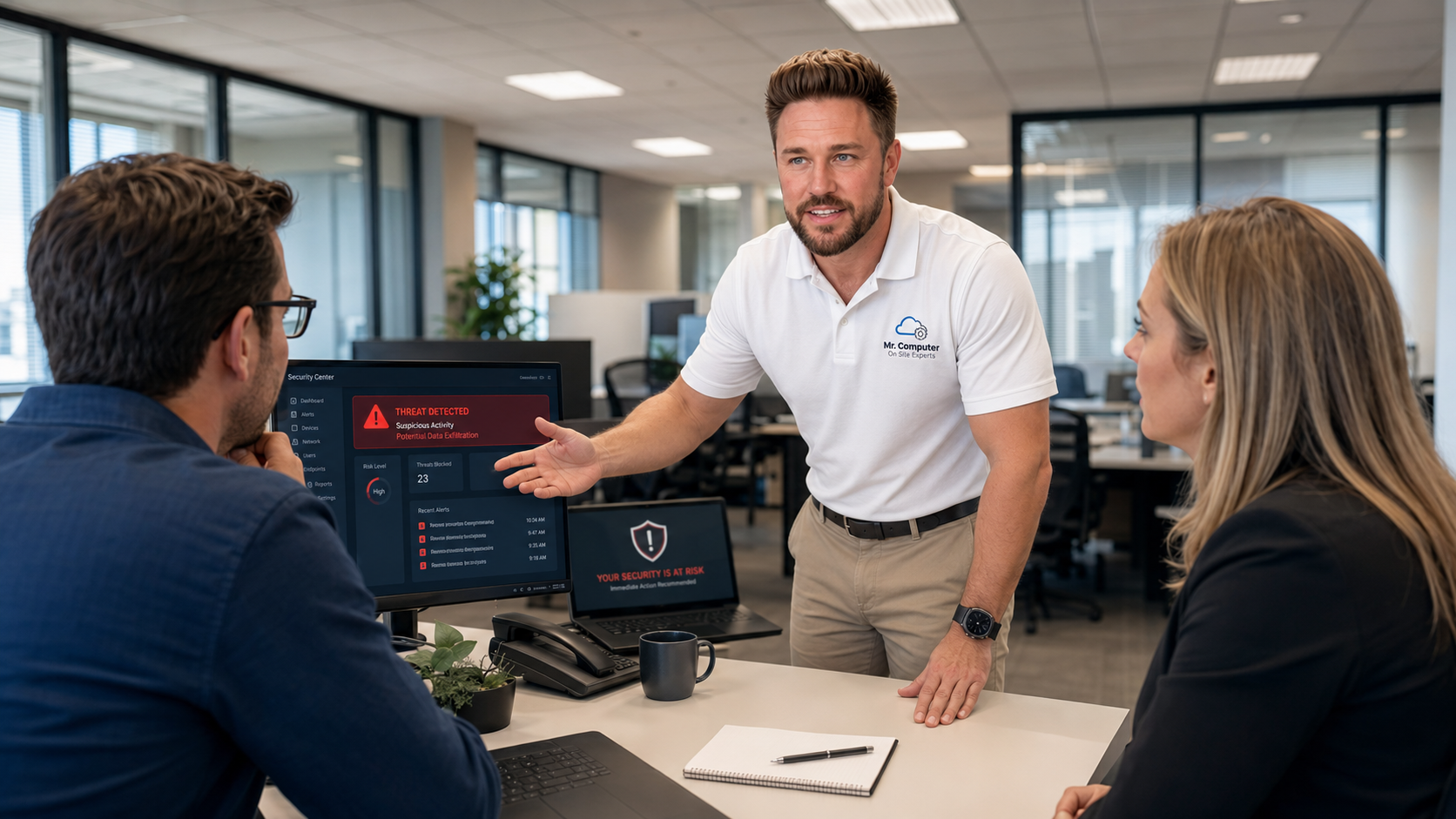
These pop-ups are designed to scare you into acting fast. The goal isn't really to sell you anything. The scammer wants to talk you into giving them remote access to your computer. Once they're connected, they may try to collect passwords, steal personal information, or get into your bank and email accounts. Some will "find" fake problems and ask for payment to fix them.
Signs it's a scam
- The warning tells you to call a phone number. Real Microsoft security alerts don't ask you to call.
- The page won't close, goes full screen, or plays a voice or alarm.
- It claims your computer is infected and your data will be lost unless you act immediately.
- It uses Microsoft, Apple or antivirus logos to look official.
- The person on the phone asks you to download a program so they can "fix" it.
Often, the pop-up is just a web page. It's frightening, but your computer may not actually be infected yet. The real damage usually starts when someone calls the number and lets the scammer in.
What to Do in the First Few Minutes
If a fake support pop-up appears, here's what I recommend:
- Don't call the number. Not even to "check."
- Don't type passwords. Avoid logging into banking, email or anything important on that computer.
- Try closing the browser. On Windows, pressing Ctrl+Alt+Delete and opening Task Manager lets you end the browser. Restarting can also clear it.
- If it won't go away, turn the computer off or disconnect it from the internet.
- Call a local technician you trust to look at it before you go back to normal use.
What If You Already Called and Let Them In?
It happens to careful, smart people. These scammers are good at sounding official. If you already gave someone remote access, act quickly:
- Turn the computer off or disconnect it from the internet right away. That ends their connection.
- Don't keep using that computer for banking, email or shopping until it's been checked.
- Call your bank if you shared card numbers, logged into online banking during the call, or paid them anything.
- Change important passwords from a different, safe device, starting with email and banking.
- Have the computer inspected. Scammers often leave remote access tools behind so they can come back later.
What a technician can and can't do
I want to be honest about this part. I can remove the remote access software, clean out malware, review your security settings, help change passwords and help secure accounts when recovery options are available. I can't recover stolen money, reverse identity theft or force a bank or platform to undo damage. That's between you and your bank. The sooner you act on both sides, the better.
How I Clean Up a Computer After a Scam Pop-Up
My virus, spyware and malware removal service is usually done on site, because infected computers are often too unstable or unsafe to fix remotely. The process is straightforward:
- Inspect. I look for malware, suspicious programs, browser hijacks, unwanted extensions and leftover remote access tools.
- Remove threats. Anything that shouldn't be there comes off.
- Audit security. I review antivirus, updates, browser settings and account security.
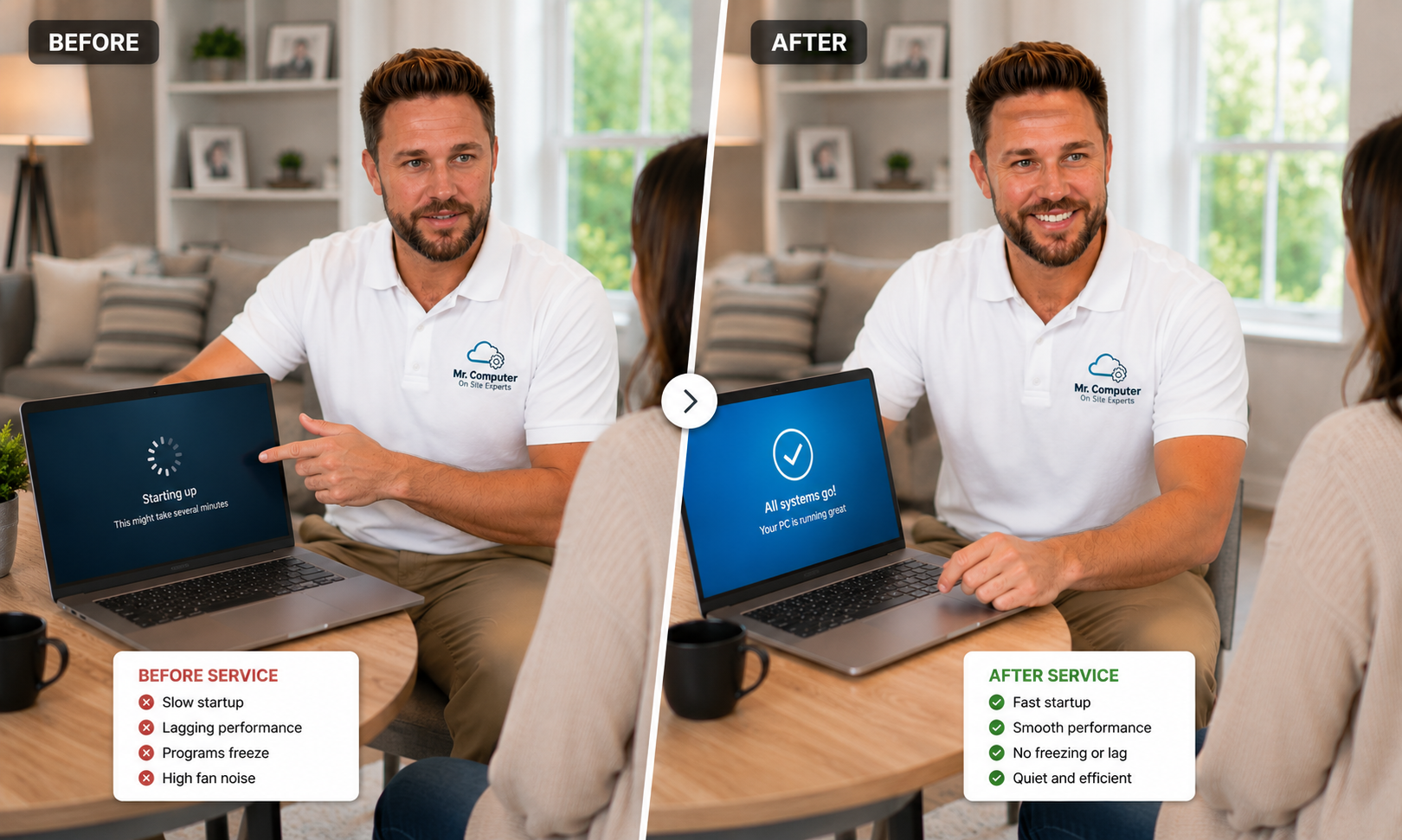
- Tune up. Startup clutter and performance problems get cleaned up while I'm in there.
When I'm done, the computer is clean. What nobody can promise is that a future pop-up, download or phone call won't cause a new problem, which is why I spend a few minutes showing you what to watch for.
How to Avoid the Next One
- Remember the rule: Microsoft doesn't put phone numbers in pop-up warnings and doesn't call you out of the blue.
- Keep Windows and your browser updated. Updates close security holes criminals try to use.
- Be careful with ads and search results that look like support pages.
- Use proper security software and keep it current.
- Keep backups of your important files so a bad day never becomes a disaster.
- Save a trusted local number where you can find it. When something looks wrong, call that instead of the number on the screen.
If you help an older parent or relative with their computer, share this with them. These pop-ups often target people who are less comfortable with technology. More scam tips are on my cybersecurity services page.
Common Questions
Can a web page really infect my computer just by appearing?
Usually the pop-up itself is just a scary web page. The bigger risk comes from calling the number, downloading what they tell you to download, or letting someone connect remotely. That said, if you clicked anything or installed anything, have the computer checked.
Will Microsoft ever call me about a virus?
No. Treat any unexpected call claiming to be Microsoft, Apple or your antivirus company as a scam, and hang up.
Get a Second Opinion Before You Call Anyone Else
If a pop-up is telling you to call Microsoft, call someone local instead. I can usually tell you over the phone whether it's a simple browser scare or something that needs a closer look.
Call Mr. Computer at 469-261-7000 or book through the site. I serve homes and small businesses across Dallas and Collin County, and I'll get your computer safe again.