Office Can't Reach the Shared Drive? Fixing Mapped Drives and NAS Access
It's Monday morning, and someone in the office says, "The S: drive is gone." A red X sits on the mapped network drive. The shared folder everyone uses for client files won't open. One computer can see the NAS, but the one next to it can't. Work stops while everyone waits.
A mapped network drive that isn't working is one of the most disruptive problems a small office can have, because so much of the day runs through shared files. Here's what usually causes it, what you can check, and when it's time to bring in someone who works through these problems regularly.

How Office File Sharing Works
In most small offices, shared files live in one central place. That might be a dedicated server, a network attached storage (NAS) device, or sometimes just one computer that everyone else connects to. Each workstation is "mapped" to that location with a drive letter, so the shared folder shows up like any other drive.
For that to work, several things all have to line up: the network connection, the address of the storage device, the Windows login credentials, permissions on the folders, and the settings that let computers see each other on the network. When any one of those changes, the mapped drive can disappear.
The Most Common Causes
A router or internet change
Swapping routers or switching internet providers often changes the network's addressing. If the mapped drive points to the old address of the server or NAS, every workstation loses it at once.
The server or NAS got a new address
Even without a router change, a power outage or restart can cause the storage device to come back with a different address. Computers looking for the old address come up empty.
Credentials and passwords
If someone changed a password on the NAS, the server or their Windows account, the saved login on each workstation may stop working. Windows sometimes fails quietly, showing a red X instead of a clear error.
Permissions
A folder's permissions may have been changed so that some users can't open it. This often shows up as "one person can get in, but another can't."
Network discovery and Windows updates
Windows updates and settings changes can turn off network discovery or file sharing features, so computers stop seeing each other.
Cabling and switch problems
A damaged cable, a loose connection or a failing switch can cut one workstation or a whole section of the office off from the shared drive.
What You Can Check First
- Is it everyone or just one computer? If everyone lost the drive, look at the server, NAS or network. If it's one computer, look at that machine's connection and login.
- Is the server or NAS turned on and showing normal lights?
- Did anything change recently? New router, new internet provider, a power outage, a password change or a Windows update are all strong clues.
- Can the computer get online? If the internet works but the drive doesn't, the problem is local.
- Restart the storage device and one affected workstation and see if the drive comes back.
Write down what you find. Even if it doesn't fix the problem, it helps the person who does.
When to Call for Help
Shared drive problems can involve permissions, network discovery, IP changes, drive mappings, Windows credentials, server-client relationships, router changes, switch problems or damaged cabling, sometimes several at once. With 27 years of hands-on computer and network experience, I can work through complicated network problems that many basic technicians aren't prepared to handle.
My small business IT services include:
- Mapped drives: restoring drive letters, login credentials, shortcuts and reliable access to shared folders
- NAS devices: reconnecting workstations to shared network storage
- Server-client setups: troubleshooting access to office servers and shared resources
- Network discovery: fixing visibility, access and permission problems between office computers
Making the Fix Stick
Getting the drive back is step one. Making sure it doesn't disappear again next month is step two. That can mean giving the server or NAS a fixed address, cleaning up how drives are mapped, documenting credentials in a safe place and tidying the network closet so problems are easier to trace.
Clean up the network closet
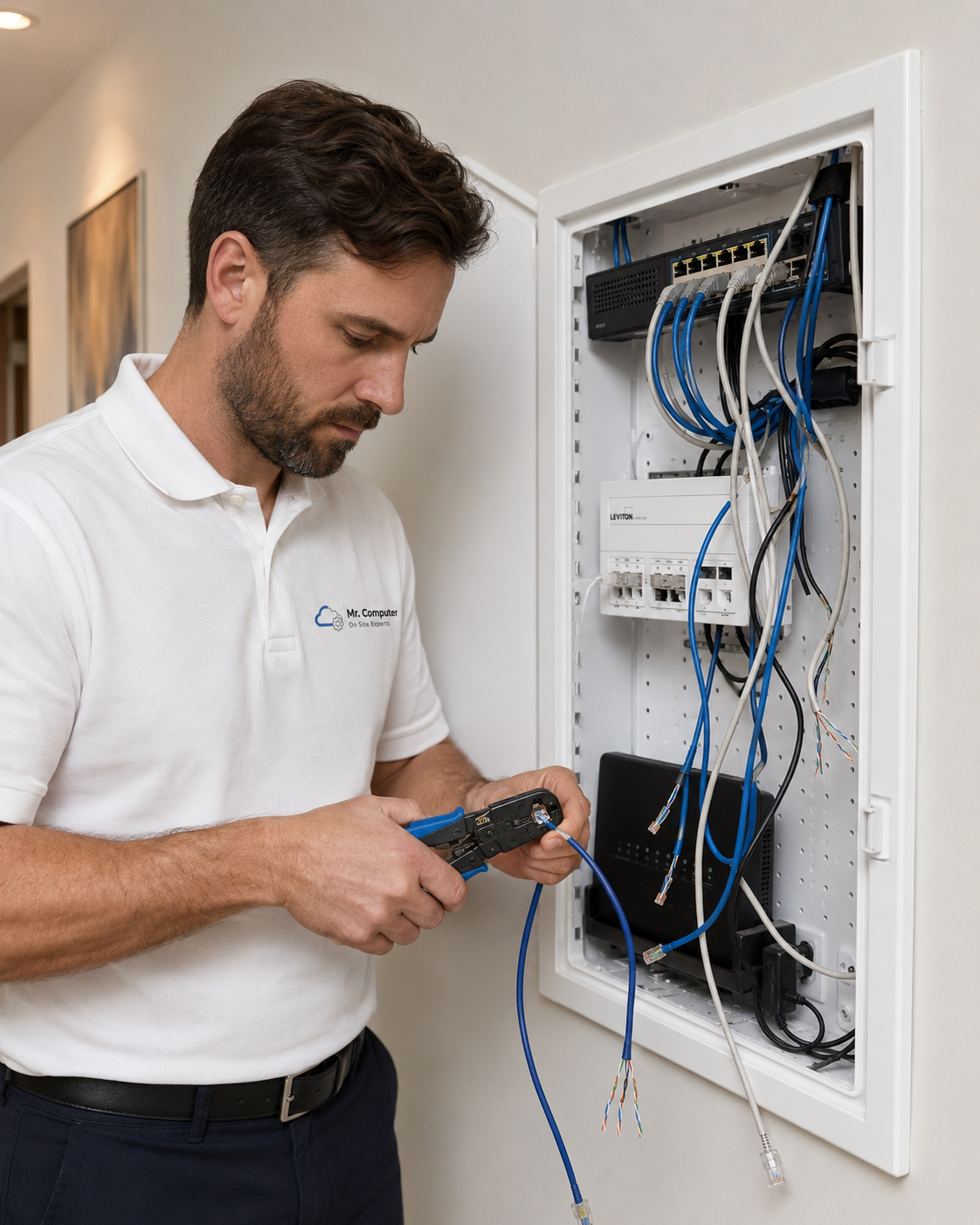
If your office network closet is a tangle of unlabeled cables, every future problem takes longer to solve. I clean up wiring, label cables, mount switches and routers in a rack, and install patch panels where it makes sense. More on that work is on my WiFi and network services page.
Shared Printers Often Break at the Same Time
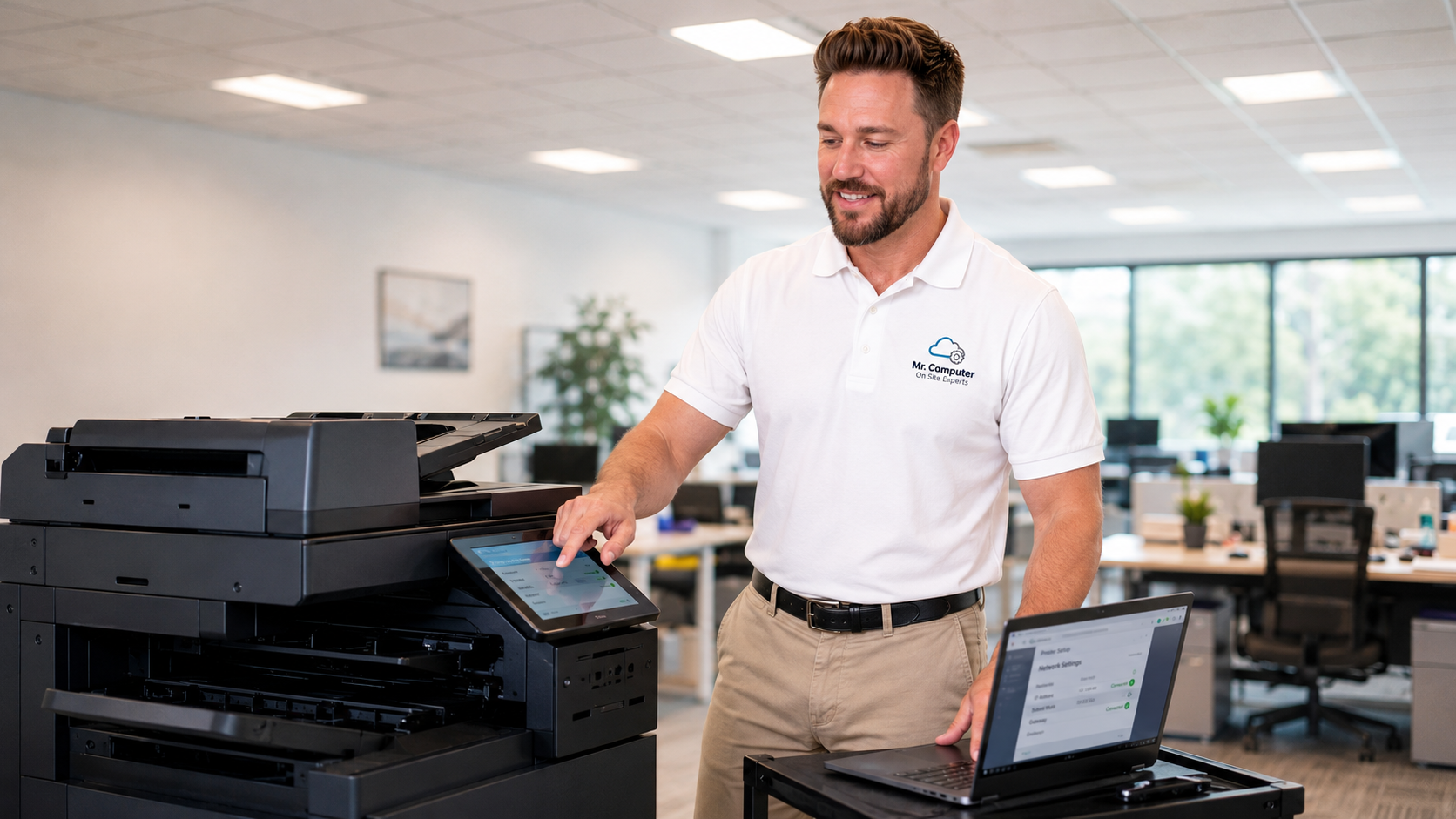
The same changes that knock out mapped drives often break shared printers and scan-to-folder workflows too. If scanning to the shared drive stopped at the same time, mention it. Fixing them together saves a second visit.
Backups: Don't Skip This Step
While the shared drive is the center of attention, it's a good moment to ask: is it backed up? A NAS or server holding all your company's files is a single point of failure. A practical backup plan protects you from drive failure, accidental deletion and ransomware.
Common Questions
Why does the drive work on one computer and not another?
Usually credentials, permissions or that computer's network settings. The storage device is fine if any computer can reach it.
Do I need a new server?
Not usually. Most mapped drive problems are configuration issues, not failed hardware.
Get Your Team Back to Work
If your office can't reach its shared files, I can help, without a monthly contract. Learn more on my business IT support page, or call 469-261-7000 or book through the site to get your shared drive working again.