Microsoft 365 for Small Business: Setup, Domain Email and Migration
Microsoft 365 setup for a small business sounds like a single afternoon: install the apps, sign in, and get back to work. For a home user with one computer, it can be close to that. For an office with domain email, several people, shared files and a mix of old Outlook profiles, it is a project. Done in the right order, it should not take your business offline. Done in a hurry, it can.

I am Jeremy Zuther of Mr. Computer. I help Plano, Allen and North Texas offices install and activate Microsoft 365, connect domain email, set up Outlook, OneDrive and Teams, and move people from older mail systems without a hard sell or a bloated contract. Here is what the work actually involves, and why business email setup can take more than one visit.
What Microsoft 365 Setup for a Small Business Really Includes
Microsoft 365 is a bundle of pieces that have to work together:
- The desktop apps: Word, Excel, PowerPoint and Outlook.
- Each person's Microsoft account and license.
- Business or domain email, often with DNS records at your domain host.
- OneDrive for file storage and syncing.
- Teams, if your office uses it for chat or meetings.
- Outlook profiles on every computer that needs the mailbox.
If you already have a subscription, I can install and activate it on the computers that need it. If you do not, you do not have to go to a store first. I can help you activate a subscription online through Microsoft and then install the apps. That is the straightforward part. The part that takes planning is email and files.
This work sits inside the broader email and Microsoft 365 services I offer for homes and offices, and it often overlaps with day-to-day small-business IT support.
Domain Email, DNS Records and Why This Can Take Two Visits
Business email is not just "add the address to Outlook." If your mail should arrive at a name like yourcompany.com, the domain host and the email host have to agree on a set of DNS records. Those records tell the internet where to deliver your mail and how to treat it as legitimate.
Changes like that often require coordination between the domain registrar, the email provider and Microsoft 365 or Exchange. DNS updates are not always instant. The email service may need to be configured first, then we wait for the host to process the change, and then I come back to add the mailboxes to each classic Outlook profile and test sending and receiving.
That is why I tell business customers, up front, that domain email setup may take two or three service calls. It is normal. Rushing the Outlook step before mail is actually flowing is how people end up with split inboxes, bounced messages or a day where nobody can send.
Offices that bought email through GoDaddy, including Microsoft 365-based GoDaddy mail, run into the same timing issues. The mailbox can be fine on the web and still not be ready for the desktop app until the records and licenses are right.

Outlook Profiles, OneDrive and Teams
Once mail is active, each computer still needs a healthy Outlook profile. Classic Outlook is the default I use for most offices, because that is what most people already know. I add the business accounts, confirm contacts and calendars, and check that personal mail, if you use it on the same PC, is clearly separated.
OneDrive is the other piece that deserves attention. Used well, it keeps files available on more than one computer and gives you a copy in the cloud. Used carelessly, it can look like files vanished when they were only unsynced, stored on another device, or sitting in a personal OneDrive instead of the work one. I set up the right account, check syncing, and make sure people know where a saved file actually lives.
Teams is optional. If your office needs it, I can install it and troubleshoot sign-in or meeting access. If you do not need it, there is no reason to turn your front desk into a tool they will not use.
How to Move an Office Without a Miserable Monday
The goal is to avoid downtime, not to make a dramatic cutover. A practical sequence looks like this:
- Inventory who has email, which computers they use, and where the important files live today.
- Get licensing and admin access in order so we are not stuck mid-visit waiting on a login.
- Configure the Microsoft 365 tenant and, if needed, the domain and DNS records.
- Wait for those changes to take effect, then add mailboxes to Outlook and test.
- Set up OneDrive and, if you use them, Teams and the Office apps on each workstation.
- Migrate older Outlook data, contacts, calendars or PST files where they still matter.
- Walk through sending, receiving, file access and a few everyday tasks with the people who will use the system.
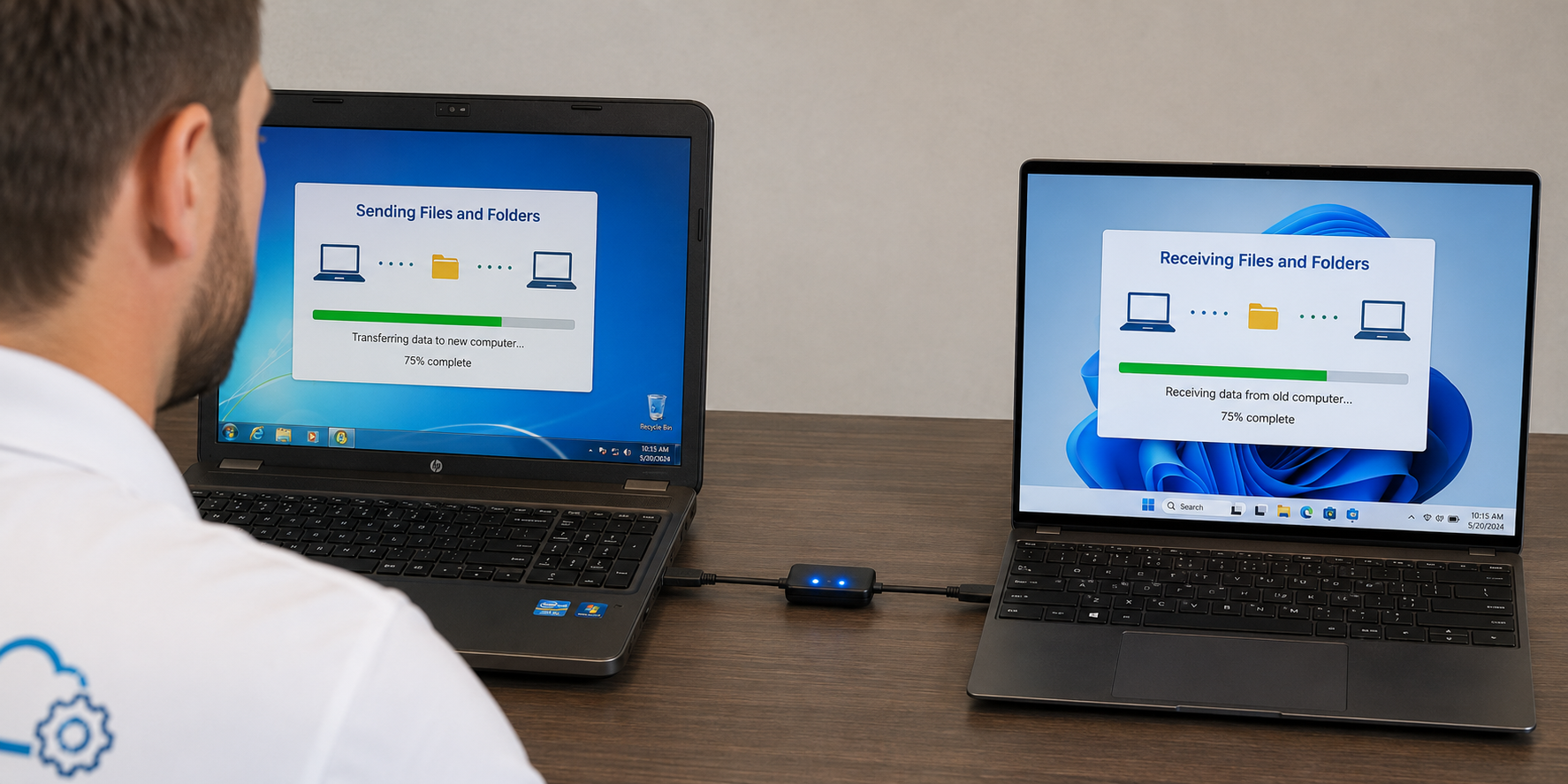
If you are also replacing computers at the same time, say so early. Programs usually cannot be copied over; they have to be reinstalled. Mail, files and the Microsoft 365 subscription can move, but the order still matters.
What I Cannot Do, and What I Will Tell You Up Front
I cannot force Microsoft or a domain host to speed up a DNS change, and I cannot recover a locked Microsoft account if the recovery phone or recovery email is no longer available. I also cannot recover messages the provider has permanently deleted. If a provider is having an outage, that is on them, not on a local setup visit.
I will not sell you a monthly contract you do not need in order to get this work done. Microsoft 365 setup is hourly, a la carte help. If you later want ongoing support, we can talk about that separately, starting with an honest look at what you already have.
Common Questions
Can this all be finished in one visit?
App installation and a single existing mailbox often can. New domain email, DNS changes and several workstations usually cannot, because we have to wait on the provider. Planning for a follow-up visit is safer than promising a one-trip cutover.
Do we have to switch to Microsoft email if we already have another host?
Not always. Some offices keep an existing host and simply use Outlook and the Office apps. Others are ready to bring mail into Microsoft 365. The right answer depends on what you already pay for and how you work. I will explain the tradeoffs in plain English.
We have staff in Plano. Can you work there?
Yes. I work throughout North Texas, and I have a page specifically for Outlook and Microsoft 365 support in Plano. Same-day or next-day service is often available.
If you want help moving the office to Microsoft 365 without guessing at DNS records or Outlook profiles, call 469-261-7000 or book an appointment. We will map the steps, set expectations about timing, and get email and files working the way your business actually uses them.