New Computer Setup: How to Move Everything Over Without Losing Files
A new computer should make life easier. Too often it does the opposite. The box comes home, the new machine boots up, and then you realize your files, email, bookmarks, printer and favorite programs are all still on the old one. A week later you're still hunting for that one folder of tax documents.
New computer setup and data migration is the most requested service I offer, and for good reason. Done right, you sit down at the new computer and everything you need is already there. Here's how that works, what can and can't be moved, and how to prepare so the process goes smoothly.
What Can Be Moved to a New Computer
Most of what matters to you can come along. When I do a new computer setup and data transfer, I typically move:
- Documents, pictures and music, including folders you may have forgotten about
- Email, contacts and calendars, set up in the email program you're used to
- Browser bookmarks and saved passwords, so your favorite sites are right where you left them
- QuickBooks and tax files, PDFs and other business and financial records
- Desktop files and shortcuts you rely on every day
The goal is a familiar setup on faster hardware, not a blank slate you have to rebuild yourself.
What Can't Be Moved (and Has to Be Reinstalled)
This surprises a lot of people: programs can't simply be copied from one computer to another. They have to be reinstalled on the new computer using the original installer, a download link, an account login, a license key or installation media. That includes:
- Microsoft 365 (installed fresh and signed in with your account)
- Antivirus software
- Remote access tools
- Purchased software like tax programs, design tools or accounting software
Some older programs may not work at all on a newer version of Windows. And some older printers may not have drivers for a new computer. If that's the case, I'll tell you up front so there are no surprises.
Email Setup on the New Computer
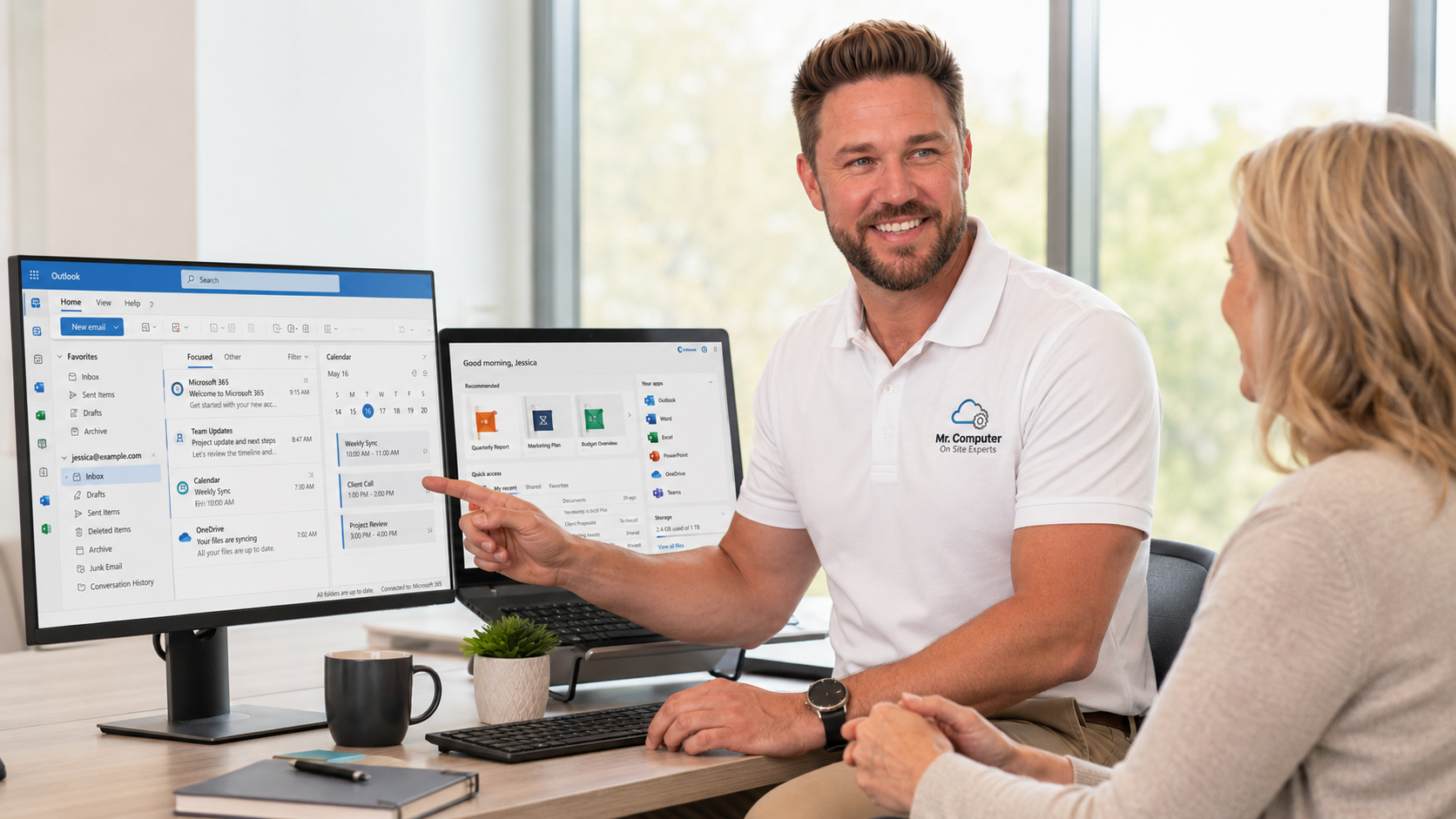
Email is the part people worry about most, and it's where a careful migration really pays off. I commonly set up Gmail, Yahoo, AOL, Verizon, iCloud, GoDaddy, Microsoft 365, and POP and IMAP accounts.
Why I default to classic Outlook
Most of my customers prefer the classic Microsoft Outlook desktop app, so that's usually what I set up unless you'd like something different. I'm happy to explain the differences between classic Outlook, the new Outlook and webmail so you can choose what fits how you work.
OneDrive: on or off?
Windows really wants you to use OneDrive. Some people love having their files synced to the cloud. Others find it confusing when their Desktop and Documents folders suddenly live online. Both choices are reasonable, and I'll set it up the way you prefer. Google Drive and Dropbox can be set up too.
What to Have Ready Before Setup Day
A little preparation makes the appointment faster and smoother. Before I arrive, try to have:
- Both computers: the old one and the new one, plugged in and nearby.
- Computer login passwords for the old computer and any account you'll use on the new one.
- Email passwords for every account you want set up. If you don't know one, we can often reset it together during the visit when recovery options are available.
- Software license information for any programs you paid for, such as product keys, account logins or install discs.
With that in hand, about 90% of my customers are completely set up in 1.5 hours or less.
What If the Old Computer Is Failing?
Sometimes the reason for the new computer is that the old one is dying. It won't boot, it freezes constantly, or it's too slow to use. That doesn't mean your files are gone. In many cases I can still get to the internal drive and pull your data off, even when the old computer won't start normally. If that's your situation, stop using the old computer as much as possible and mention it when you call.
Help Choosing the Right Computer
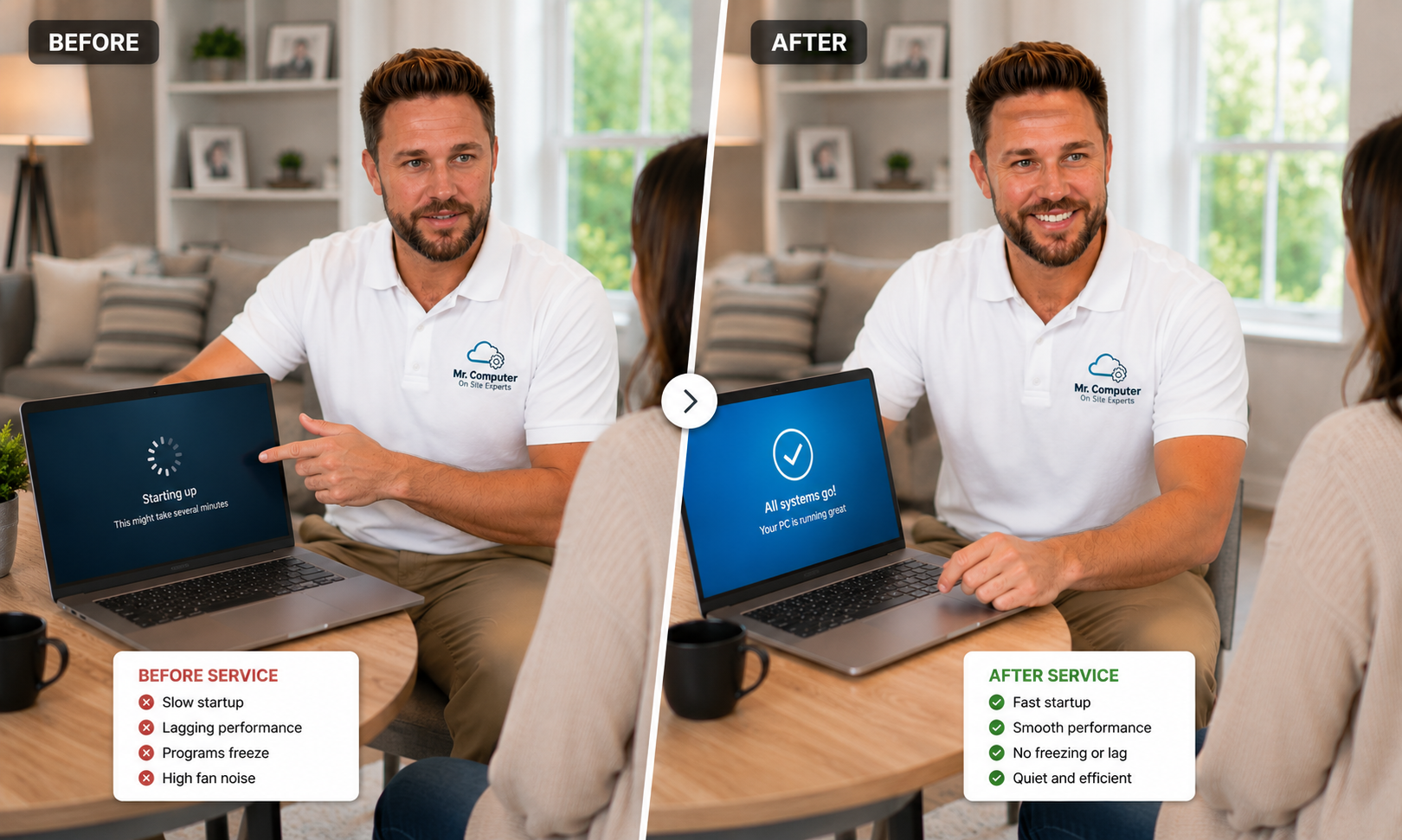
If you haven't bought the new computer yet, I can help with that too. I'll recommend a computer that fits your needs and budget, whether you mostly use email and the web or you run business software all day. Then I'll set it up, connect it to your WiFi and printer, install the basics and move your files over. Choose, set up, migrate, done.
DIY Transfer Tools: Why They Fall Short
There are transfer tools and cloud backup options that promise to move everything automatically. They help with files, but they often miss email setups, saved passwords, printer drivers and the small settings that make a computer feel like yours. They also won't tell you which programs need to be reinstalled or which old software won't run on Windows 11. A hands-on migration covers those gaps.
The Setup Process, Step by Step
- Tell me what you need. What's on the old computer, which email accounts you use and what programs you rely on.
- I review both computers. I check what's there and what needs to come over.
- I migrate and configure. Files, email, bookmarks, printer and software setup.
- We test everything. Email sends and receives, the printer prints, your files open, and you know where things are.
You can read more details on my computer setup and data migration page, and on my email and Microsoft 365 page if your email is the main concern.
Ready for Your New Computer?
Whether the new computer is still in the box or you've already given up trying to move things yourself, I can help you get it ready to use without losing a single file. I serve homes and small businesses across Dallas and Collin County.
Call 469-261-7000 or book your new computer setup online.