
Small Business Data Backup: Protecting Files From Drive Failure and Ransomware
The most important small business data backup advice is also the least exciting: have a current, automatic copy of your files, stored in more than one place, and test that you can restore it. A failed drive or a ransomware attack is not theoretical. When those things happen, "we thought the files were on the computer" is a painful sentence. Recovery later is often not possible.
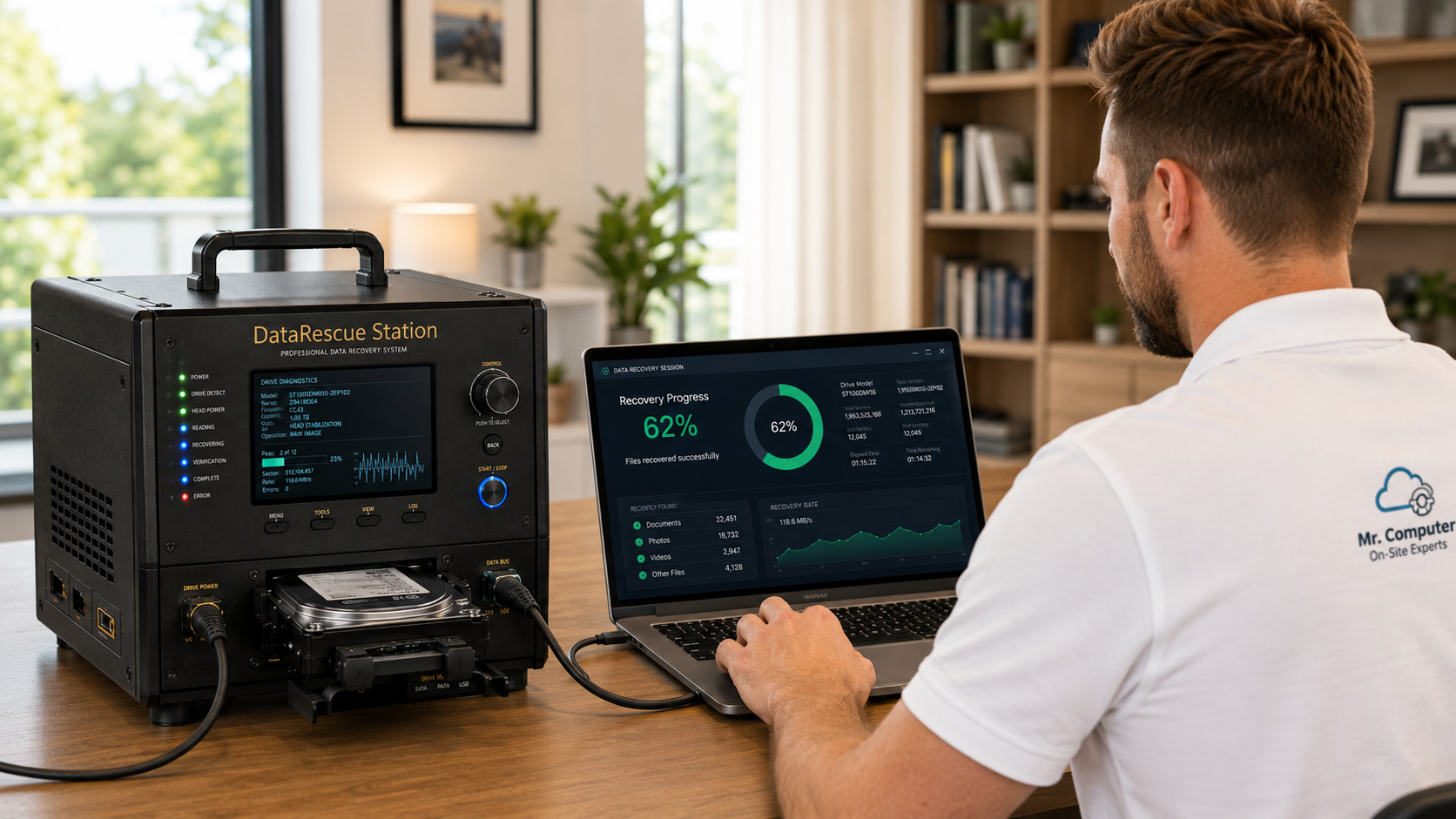
I am Jeremy Zuther of Mr. Computer in Allen. I help offices with backup planning as part of cybersecurity and everyday IT work. I also do on-site data recovery from internal computer drives, and I am honest about the limits of that work. Encrypted files, deleted files and physically failed or clicking drives are outside what I can recover. That is exactly why a backup plan matters more than a heroic recovery later.
Why Small Business Data Backup Is the Real Protection Against Ransomware and Drive Failure
Ransomware encrypts files and holds them for payment. Even when a computer can be cleaned, the documents themselves may already be unreadable. A physically failed drive, a computer that will not boot, or a machine that is too unstable to use can put the only copy of invoices, QuickBooks files, photos of completed jobs or client records out of reach.
On-site data recovery can help when an internal drive is still readable and the computer will not start normally. It is not a substitute for a backup. I do not do clean-room work. I do not recover external drives, USB flash drives, SD cards, phones, RAID arrays, deleted files or ransomware-encrypted files. If the only copy lived on a drive that has failed physically, a specialty lab may be the next conversation, and even then there is no guarantee.
A backup you already had, and have tested, is the one fix that still works in those situations. That is the foundation of ransomware protection for a small business, and of ordinary disaster recovery after a crashed PC.
A Practical Backup Plan: Local, Cloud and Automatic
You do not need an enterprise system. You do need a plan that does not depend on someone remembering to copy a folder every Friday. A practical office setup usually has three parts.
1. An automatic local copy
A local backup, such as a drive in the office or a small network-attached device, gives you a fast restore when a single computer fails. It should run on a schedule, without someone having to plug in a drive and click through a wizard. A drive that sits on a desk and is only used "when we think of it" is better than nothing, and it is not a plan.
2. An automatic off-site or cloud copy
A fire, a theft, a flood, or ransomware that also reaches a drive plugged into the same computer can take the local copy with it. Cloud backup, or another copy stored off site, is the second layer. Many offices already pay for OneDrive, Google Drive or Dropbox. Those tools can be part of the plan, but only if the right folders are actually syncing, and only if you understand what is and is not included.
3. A restore test
A backup that has never been restored is a hope, not a proven system. At least once, restore a few real files, and if you use QuickBooks or a line-of-business program, confirm that a backup from that program restores too. Write down how the restore works so someone else in the office could follow it.

Who Owns the Backup, and What Should Be in It
The plan fails when nobody owns it. Pick a person, even in a two-person office, who will notice if last night's backup did not run. If that person is you, put a recurring reminder on the calendar. If I help you set this up, we will also talk about who gets the credentials and where they are stored.
Decide, in writing if possible, which files matter:
- Shared folders and mapped drives, not just the documents on one person's desktop.
- Email archives or local Outlook data if you keep important mail outside the server.
- Accounting files, tax records and scans of signed documents.
- Photos, design files or project folders that cannot be recreated easily.
- Any list of licenses, vendor logins and how the backup itself is configured.
Cloud file sharing is not automatically a complete backup. If someone deletes a shared folder, or files only ever lived on a laptop that was not syncing, the cloud may not have what you think it has. During a visit I can review what is actually being copied, as part of cybersecurity services and regular small-business IT work.
How This Fits With Security, Not Just Storage
Backups and security belong together. If ransomware can reach both the computer and the only backup drive, you have one failure, not two layers. Practical steps include unique passwords, two-step verification on email and cloud accounts, care with remote-access tools, and a backup copy that is not always connected and writeable from the infected machine.
I will not promise that any office is guaranteed against a future attack or a future hardware failure. I will help you reduce the risk and make sure a bad day does not also erase the records you need to keep operating.
What a Backup Visit Looks Like
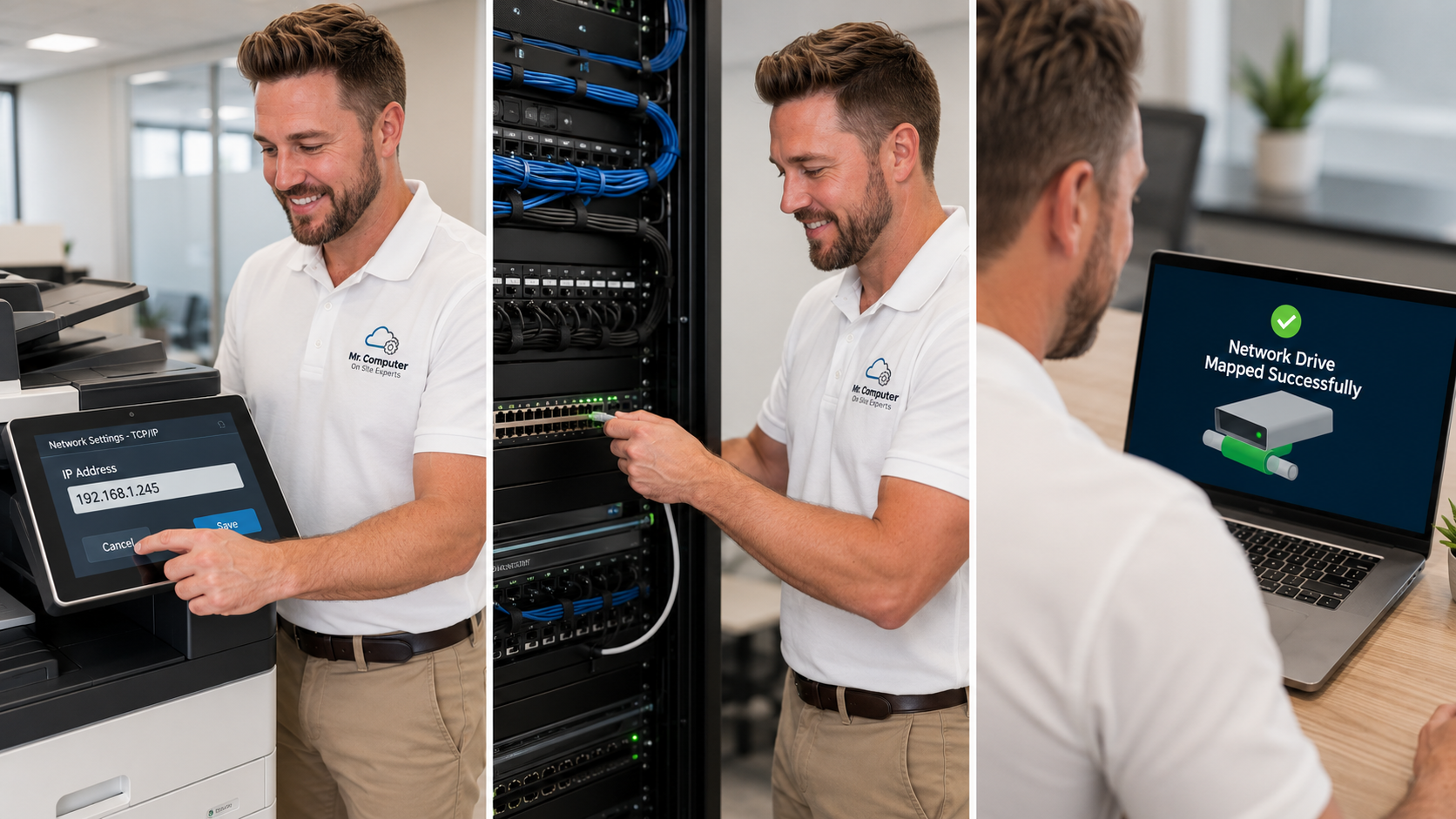
We look at where files live today, what is already being copied, and what would happen if a particular computer or drive disappeared tomorrow. Then we set up or correct automatic local and cloud backup, confirm the important folders are included, and run a restore test. Same-day or next-day service is often available. There is no required monthly contract for this work.
If a computer has already failed and there is no backup, we can talk about whether on-site recovery from the internal drive is realistic, and what it cannot do. I would rather have that conversation before the failure, while the files are still easy to copy.
Common Questions
Isn't the Microsoft 365 or Google account enough?
It can be a strong part of the plan if people actually save and sync in the right places. It is not enough if important files live only on a desktop, a shared drive that is not included, or a computer that never signed in correctly.
How often should backups run?
For most offices, every day is the minimum that feels sane, and more often for files that change all day. The better question is: how much work can you afford to redo if the copy is a week old?
Can you recover files after ransomware if we did not have a backup?
I do not recover ransomware-encrypted files. That is one of the limits of my data recovery work, and it is the main reason I would rather help you set up a backup now.
If you want a straightforward backup and recovery plan for the office, call 469-261-7000 or book an appointment. We can see what you already have, automate the copies you still need, and test a restore so you know it works.