
Windows 10 to Windows 11: Upgrade Your PC or Replace It?
Windows 10 end of support is not a rumor anymore. Microsoft ended regular support for Windows 10 on October 14, 2025. That means the operating system no longer receives regular security updates. The computer may still turn on and feel familiar, but it becomes a growing risk over time, especially if you use email, banking or work files on it.
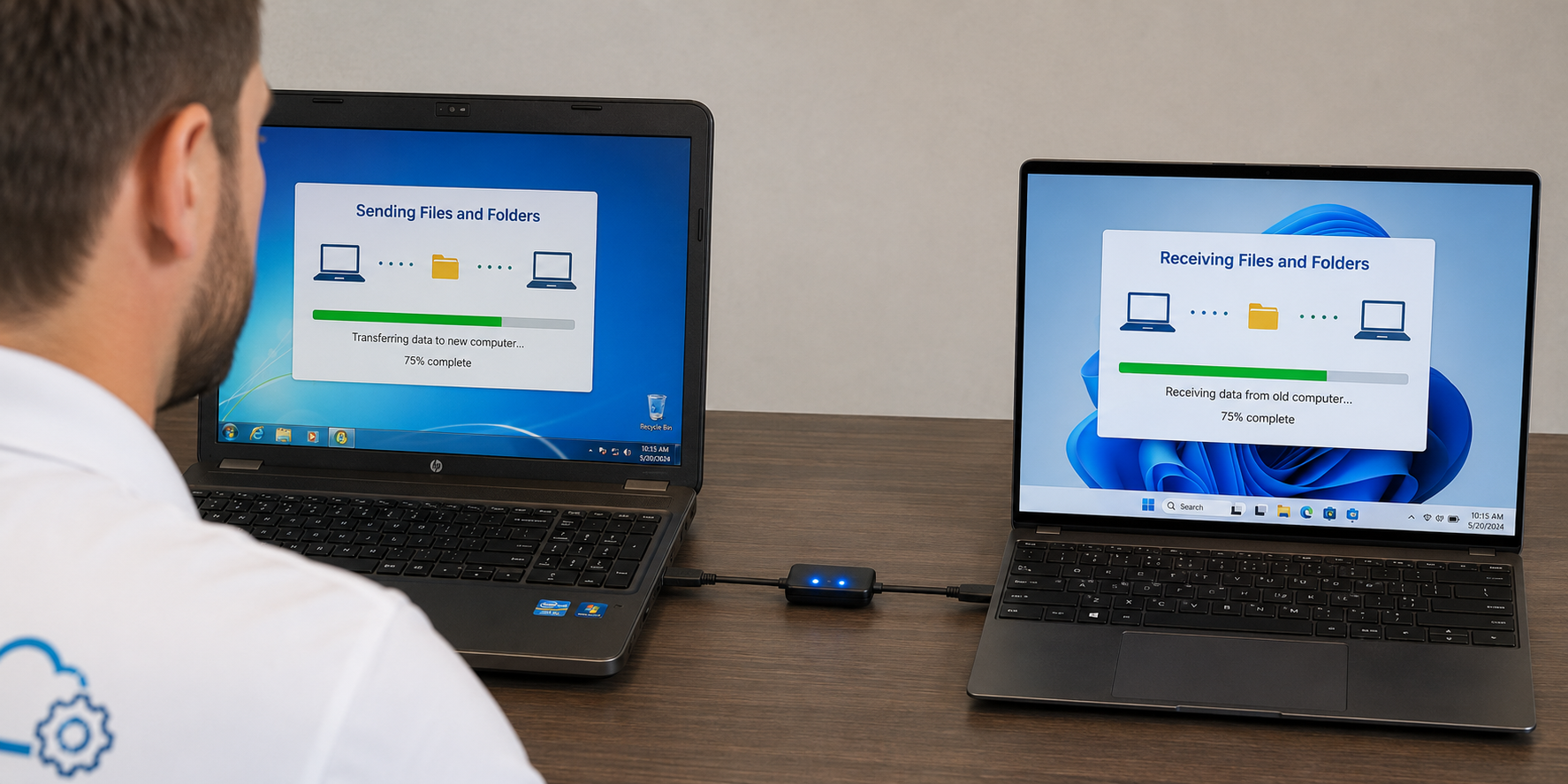
The practical question is what to do next: upgrade the PC you have to Windows 11, improve it with something like a faster drive, or replace it and move your files. I am Jeremy Zuther of Mr. Computer in Allen. I support Windows 10 and prefer Windows 11. I do not support Windows 8 or older. I can help you decide, and if a new computer is the right call, I can help you choose it, set it up and move your information over.
What Windows 10 End of Support Means in Plain English
When Microsoft ends support for a version of Windows, it stops providing the usual stream of security fixes. You can keep using the machine. You should not treat it as a long-term plan for anything important. New vulnerabilities are found all the time, and an unsupported system is left behind.
This is not a reason to panic-buy the first computer you see online. It is a reason to make a deliberate choice: upgrade if the hardware can do it well, or replace the machine and migrate your files while you can still get to them easily.
If the computer is already slow, unstable or years past a comfortable life, end of support is often the nudge to replace it rather than to invest more time in an upgrade that will still feel dated.
Can This Computer Upgrade to Windows 11?
Windows 11 has hardware requirements that a lot of perfectly usable Windows 10 PCs do not meet. In broad terms, the computer needs a compatible processor, TPM 2.0 and Secure Boot, plus enough memory and storage to be comfortable. Microsoft's own PC Health Check tool, or an on-site look at the machine, will tell you more than a guess from the model name on the case.
If the PC qualifies and it is otherwise in good shape, an in-place upgrade can be a sensible path. I still recommend a current backup before any major operating-system change. If the PC does not qualify, unofficial workarounds are not something I will sell you. The honest options are a different computer, or a limited, short-term plan you go into with your eyes open.
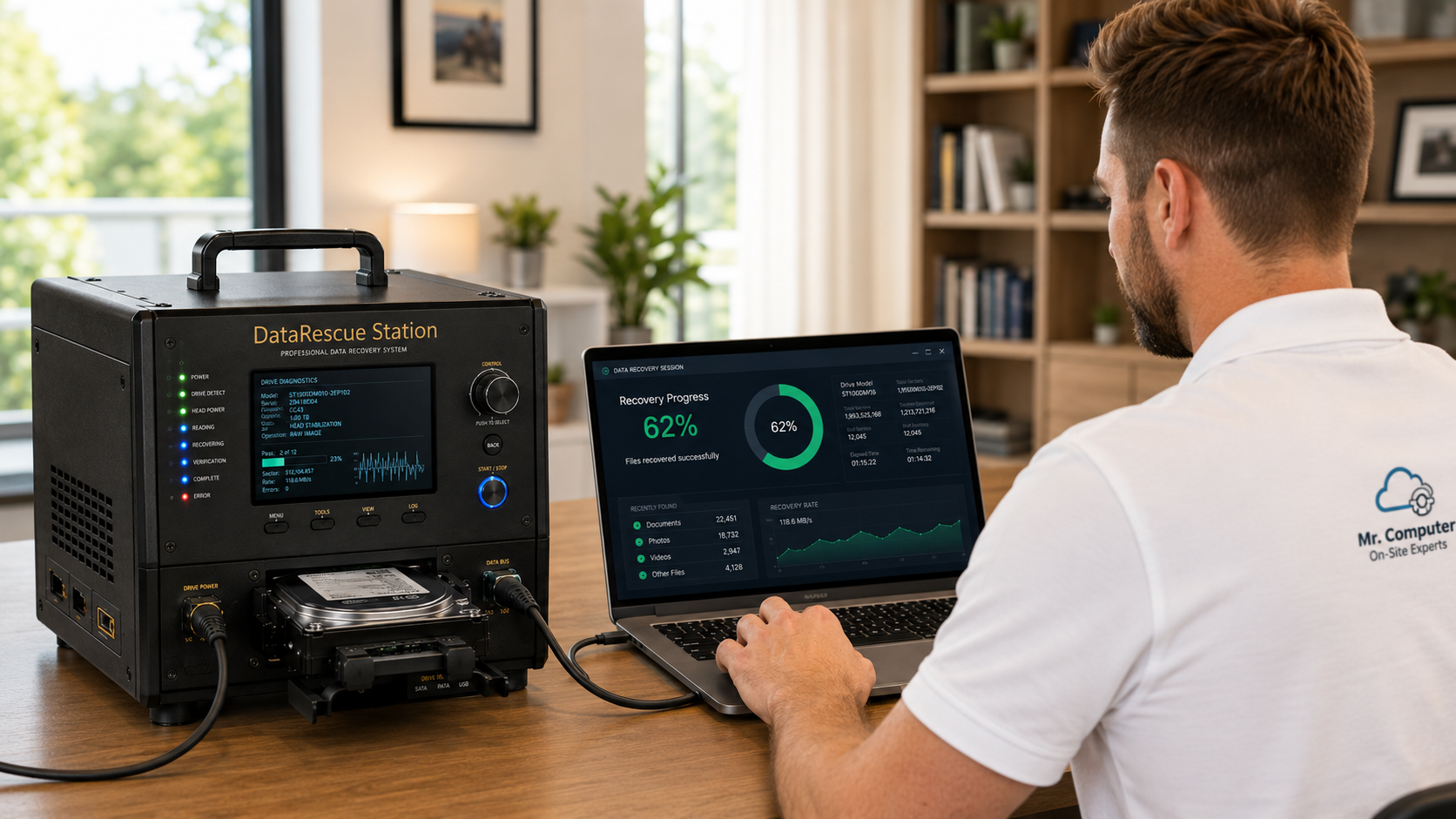
Even when an upgrade is possible, it is not always the best use of money. A computer with a failing hard drive, not enough memory, or a battery that barely lasts a commute may need hardware attention first, or it may be time to replace it.
Upgrade, Add an SSD, or Replace the Computer?
This is the decision I walk through on a lot of slow-computer visits. The right answer depends on the hardware, the way you use the machine, and how much patience you have left for it.
- Upgrade to Windows 11 on this PC if it is compatible, already has a solid-state drive or can get one, and meets your needs for speed and screen or keyboard comfort.
- Add or clone to an SSD, and review memory, if the computer is still worth keeping but feels slow. A mechanical hard drive is a very common reason a PC feels older than it is. This can be done before or along with a Windows 11 upgrade when the hardware allows it.
- Replace the computer if it cannot run Windows 11, is already unreliable, or would cost more to bring up to date than a new machine is worth.
I will tell you which of those I would do in your place. I will not push a new computer you do not need, and I will not pretend an old one will feel new after a settings tweak. Repair-versus-replace advice is part of the work, not an upsell.
I do not repair cracked screens, DC jacks or other physical damage on laptops. If that is the problem, we talk about data and a replacement, not a hardware rebuild I do not offer.
If You Replace It, What Actually Moves
A new computer is only a relief if your information arrives with it. New computer setup and data migration is the most requested service I do, and it is the clean way to leave Windows 10 behind.
Documents, photos, email, contacts, calendars, bookmarks and passwords, plus files like QuickBooks and tax records, can usually be moved when they are available. Programs generally cannot be copied. They have to be reinstalled with the original installer, a download, a license or a login. Microsoft 365 can be installed and activated on the new machine. I default to classic Outlook when I set up email, because that is what most people want.
About 90% of setup and migration jobs finish in 1.5 hours or less, based on the work I see. Having the old computer, passwords, account logins and any license keys ready makes that much more likely. I can also help you choose a replacement if you do not want to guess at models.

What Support I Offer, and What I Do Not
I work on Windows 10 and Windows 11, on both home and office PCs, and I also support Apple computers as part of general PC and Mac support. I do not support Windows 8 or older. If a machine is on an ancient version, the useful conversation is almost always about getting the files off and moving to a current system.
Same-day or next-day service is often available. There is no required monthly contract, and no hard sell. If you want me to look at the computer you have and give you a straight answer, that visit is the place to start.
Common Questions
Can I just stay on Windows 10 if I am careful?
You can, in the sense that the computer will still run. Without regular security updates, the risk rises over time. For a machine that holds email, photos or work files, I would plan an upgrade or a replacement rather than treat "careful browsing" as a long-term strategy.
Will I lose my files in an upgrade?
A proper backup comes first, whether you upgrade in place or move to a new PC. I do not start a major change on the only copy of someone's documents.
What about Windows 11 on a computer that is not officially compatible?
I will not recommend unofficial shortcuts around Microsoft's requirements. If the PC does not qualify, we look at a replacement and a clean migration.
If you want help deciding whether to upgrade or replace, call 469-261-7000 or book an appointment. We can inspect the computer you have, talk through the options in plain English, and, if needed, set up the new one so you are working on day one.