
Browser Cookies Explained
Cookies Are Essential to the Internet — Blocking Them Can Break Websites, Logins, Shopping Carts and Online Services
Browser cookies are small pieces of information that websites save in your browser so the internet can work the way people expect. They help websites remember logins, shopping carts, preferences, security sessions, saved settings and basic website activity. Cookies can raise privacy questions, but cookies themselves are not viruses, malware or spyware.
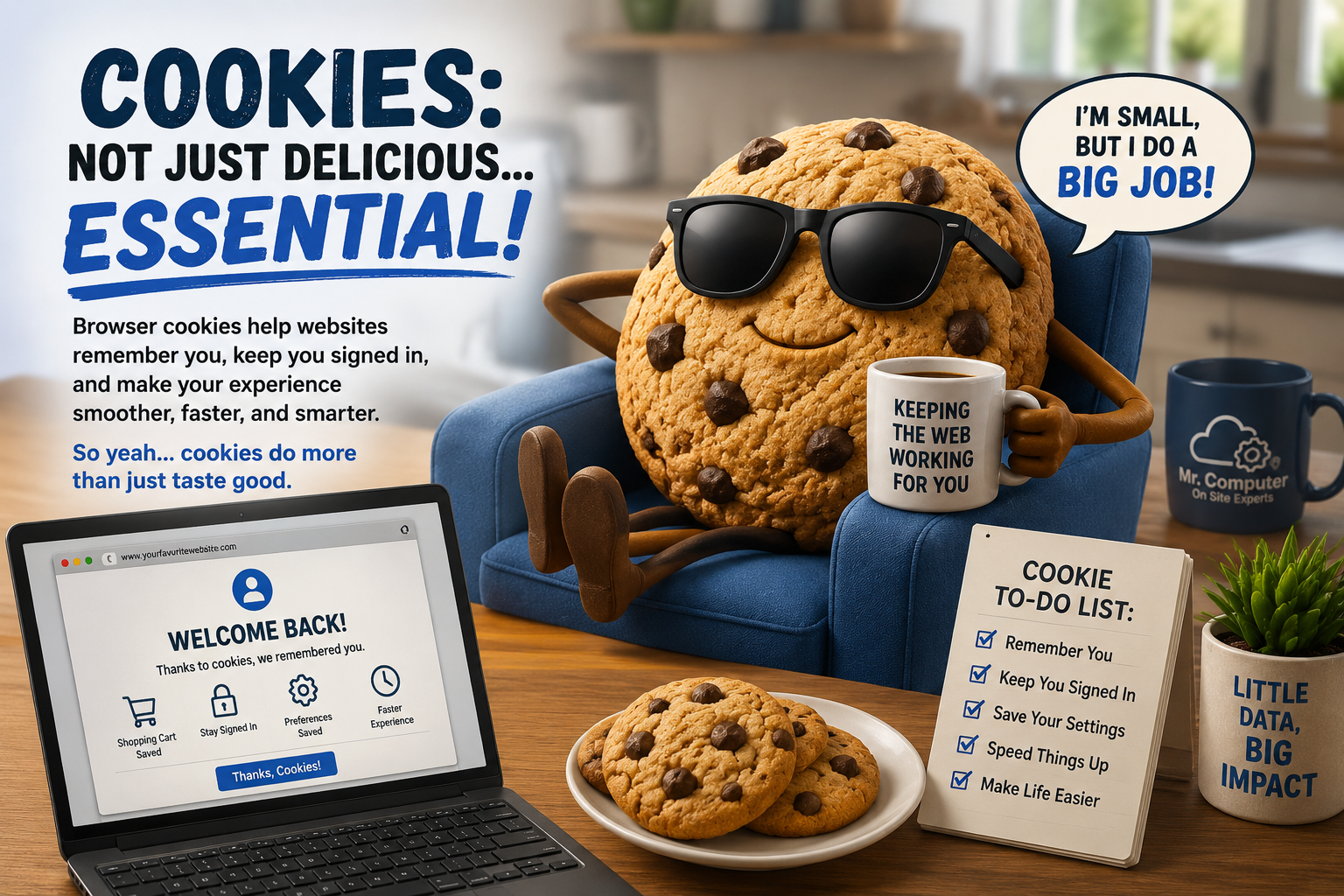
Cookies Are Part of How the Internet Works
A cookie is like a small note a website stores in your browser. Without cookies, many websites would forget you every time you clicked to another page.
Cookies Keep Websites From Having Amnesia
Cookies help websites remember your login session, shopping cart, preferences, language settings, security state and other details that make websites usable.
They Keep You Signed In
Cookies help websites remember that you already logged in, so you do not have to sign in again on every page.
They Save Shopping Carts
Without cookies, an online store may forget what you placed in your cart before you check out.
They Remember Preferences
Cookies can remember settings like language, location, layout, dark mode and other site preferences.
They Support Security
Many login systems use cookies to manage secure sessions and help confirm that you are the same visitor.
They Help Websites Improve
Analytics cookies can help website owners understand which pages work well and where users get confused.
They Are Browser-Specific
Cookies saved in Chrome are separate from cookies saved in Edge, Firefox, Safari or other browsers.
They Are Usually Normal
Seeing a cookie notice does not mean the website is dangerous or that your computer has a virus.
Without Cookies, the Internet Gets Annoying Fast
Blocking every cookie may sound like a strong privacy move, but it often creates real problems. Websites may repeatedly ask you to log in, shopping carts may disappear, banking websites may refuse to work correctly, email websites may behave strangely, and settings may reset every time you visit.
The smarter approach is not to fear all cookies. It is to understand the difference between necessary cookies, preference cookies, analytics cookies and advertising cookies. You can care about privacy without breaking half the websites you use.
Logins May Fail
Websites may keep asking you to sign in or may fail to stay signed in.
Carts May Empty
Shopping websites may forget what you selected before checkout.
Settings May Reset
Sites may forget your preferences every time you return.
Banking Can Break
Secure websites often rely on cookies to manage trusted sessions.
Cookies Got a Bad Reputation They Did Not Fully Deserve
Somewhere along the way, browser cookies got treated like tiny digital goblins hiding inside your computer. A lot of headlines made cookies sound evil, dangerous and mysterious — because apparently “small browser file helps website remember your shopping cart” was not dramatic enough for a news story.
The truth is more boring and more useful. Cookies are normal. Some are essential. Some are optional. Some are used for advertising. And some are worth limiting for privacy. But cookies themselves are not malware, and blocking all of them can create more frustration than protection.
Different Types of Browser Cookies
The key is balance. Some cookies are required for websites to function, while others are used for convenience, analytics or advertising.
Essential Cookies
These help a website function. They may keep you signed in, remember security settings or keep checkout working.
Preference Cookies
These remember choices like language, location, layout, dark mode or other website settings.
Analytics Cookies
These help website owners understand traffic, page visits and where improvements may be needed.
Advertising Cookies
These may help advertisers show relevant ads or measure whether someone interacted with an ad.
Be Careful With “Block All Cookies” Settings
Blocking third-party advertising cookies can be reasonable for privacy. Blocking every cookie is different. That can cause websites to malfunction, especially websites that require logins, accounts, payment screens, shopping carts or secure sessions.
If you blocked cookies and now websites keep signing you out, refusing to load, forgetting your settings or failing during checkout, the cookie setting may be the cause.
Better Option
Block or limit third-party tracking cookies instead of disabling everything.
Site Exceptions
Allow cookies for trusted sites you use often, like banking, email or shopping.
Clear When Needed
Clearing cookies can fix a broken website without permanently blocking them.
Update Browser
Modern browsers already include better privacy controls than older browsers.
Should You Clear Your Cookies?
Clearing cookies can help when a website is acting strange, refusing to load properly, remembering the wrong account, showing old information or getting stuck during login.
The tradeoff is that clearing cookies may sign you out of websites, remove saved preferences, reset shopping carts and make some websites feel like you are visiting for the first time again.
Good Time to Clear Cookies
A website is broken, stuck, showing old information, remembering the wrong account or failing during login.
What May Happen After
You may need to sign back into email, banking, shopping, social media and other websites.
Do Not Panic
Being asked to accept cookies is normal and does not mean your computer is infected.
Cookies Are Usually Normal — Pop-Ups, Scams and Unknown Remote Access Tools Are More Concerning
Cookies are not usually the problem. If your computer is covered in fake virus warnings, browser pop-ups, scam messages, unknown toolbars, suspicious extensions, unknown remote-access programs or strange password prompts, that is different.
Those issues may require a security review. Mr. Computer can inspect the computer, review browser settings, check suspicious programs, remove unwanted extensions, look for remote-access tools and help you reduce risk.
Fake Virus Warnings
Pop-ups claiming your computer is infected and telling you to call a number are often scams.
Unknown Extensions
Suspicious browser extensions can change searches, show ads or create annoying behavior.
Remote Access Tools
If a stranger remoted into your computer, shut it down or disconnect internet access and call us.
Compromised Passwords
If accounts are acting suspiciously, passwords and recovery options may need to be reviewed.
Practical Cookie and Privacy Advice
You do not need to fear every cookie. The smarter approach is to understand what cookies do, keep your browser healthy and know when a problem is more serious than normal website behavior.
Do Not Block Everything
Blocking all cookies can break websites. Use balanced privacy settings instead.
Be Careful With Extensions
Browser extensions can be riskier than cookies. Avoid installing unnecessary toolbars or add-ons.
Clear Site Data When Needed
If one website is misbehaving, clearing that site’s cookies can often help without clearing everything.
Watch for Scam Behavior
Cookies do not ask you to call fake support numbers or give strangers remote access to your computer.
Confused by Cookie Settings, Browser Pop-Ups or Security Messages?
We can help explain what is normal, what is annoying, and what may be a real security concern. If your browser settings are too strict, we can help restore normal website behavior. If your computer is showing persistent pop-ups, fake warnings, suspicious browser behavior or signs of malware, schedule a cybersecurity service call.
We can review your browsers, remove unwanted extensions, check startup programs, inspect suspicious software and help you understand what happened.
How We Help With Browser and Security Concerns
We take a practical approach: explain what is normal, identify what is suspicious and clean up the computer when needed.
Explain the Problem
Tell us whether you are seeing cookie notices, pop-ups, fake warnings or strange browser behavior.
We Inspect the Browser
We review browser settings, extensions, search settings, startup pages and suspicious behavior.
We Check Security Risks
We check for unwanted programs, suspicious extensions, remote access tools and signs of malware.
We Explain What Matters
We teach you what is normal, what to ignore and what should be treated seriously.
Cookies Help the Internet Work — But Suspicious Pop-Ups Are Worth Checking
If you are worried about browser cookies, broken websites, blocked cookie settings, pop-ups, fake virus warnings, suspicious extensions or possible malware, Mr. Computer can help explain what is happening and clean up real problems.